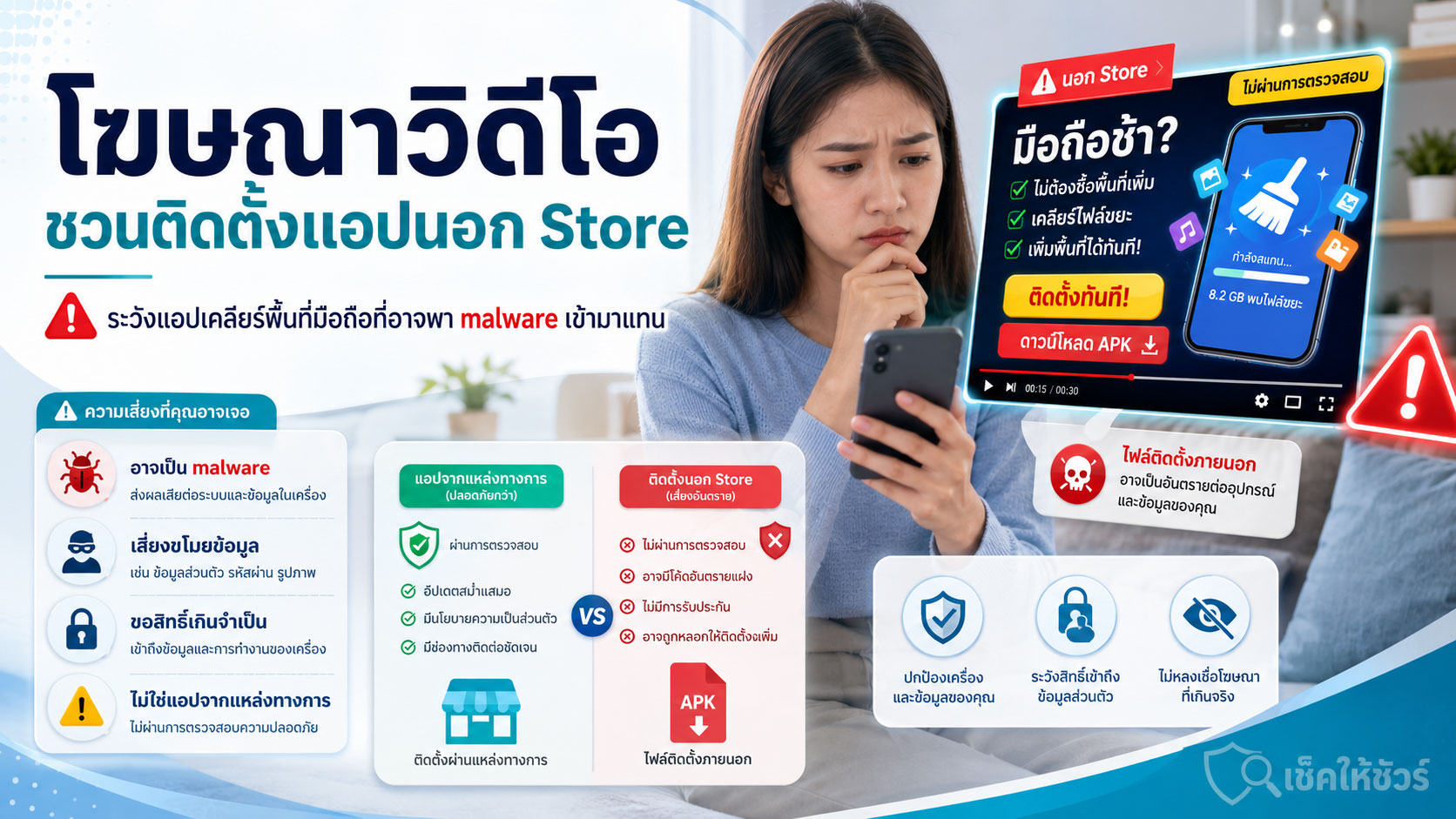
หลายคนเคยเจอโฆษณาวิดีโอระหว่างดูคลิปหรือเล่นแพลตฟอร์มวิดีโอออนไลน์
เนื้อหาในโฆษณาอาจฟังดูน่าสนใจมาก เช่น
“มือถือช้าเพราะไฟล์ขยะเยอะ”
“ไม่ต้องซื้อพื้นที่ Cloud เพิ่ม”
“ลบข้อมูลที่ไม่จำเป็นได้ในคลิกเดียว”
“เคลียร์รูปซ้ำ วิดีโอซ้ำ และไฟล์ที่กินพื้นที่”
“ติดตั้งแอปนี้ แล้วเครื่องจะกลับมาเร็วขึ้น”
สำหรับคนที่มือถือเริ่มเต็ม เครื่องเริ่มช้า หรือกังวลว่ารูปและวิดีโอจะกินพื้นที่มากเกินไป โฆษณาแบบนี้อาจดูเหมือนคำตอบที่ง่ายมาก
แต่ปัญหาคือ บางโฆษณาไม่ได้พาเราไปดาวน์โหลดแอปจาก App Store หรือ Google Play Store
กลับพาเราไปยังเว็บไซต์ภายนอก เพื่อให้ดาวน์โหลดไฟล์แอปมาติดตั้งเอง
และนั่นคือจุดที่ควรระวังอย่างมาก
เพราะการเห็นโฆษณาบนแพลตฟอร์มวิดีโอ ไม่ได้แปลว่าไฟล์แอปปลายทางปลอดภัยเสมอไป
โฆษณาที่ดูน่าเชื่อถือ อาจไม่เท่ากับแอปที่ปลอดภัย
คนจำนวนมากอาจคิดว่า ถ้าโฆษณาปรากฏบนแพลตฟอร์มวิดีโอใหญ่ๆ แสดงว่าแอปนั้นน่าจะผ่านการตรวจสอบแล้ว
ความเข้าใจนี้มีส่วนถูก แต่ไม่ครบทั้งหมด
แพลตฟอร์มโฆษณามักมีนโยบายและกระบวนการตรวจสอบโฆษณา แต่สิ่งที่ผู้ใช้ต้องเข้าใจคือ “ตัวโฆษณา” กับ “ไฟล์แอปที่ถูกให้ดาวน์โหลดภายหลัง” อาจไม่ใช่สิ่งเดียวกัน
บางโฆษณาอาจใช้ภาพ วิดีโอ ข้อความ และ landing page ที่ดูปกติ
แต่เมื่อผู้ใช้กดต่อ อาจถูกพาไปยังเว็บไซต์ภายนอก
หรือถูกชวนให้ดาวน์โหลดไฟล์แอปโดยตรง
หรือถูกบอกให้อนุญาตการติดตั้งจากแหล่งที่ไม่รู้จัก
จุดนี้อันตราย เพราะไฟล์แอปที่ไม่ได้มาจาก Store อย่างเป็นทางการ อาจไม่ได้ผ่านกระบวนการตรวจสอบในระดับเดียวกับแอปที่อยู่บน Store
ยิ่งถ้าแอปนั้นอ้างว่าเป็นแอป “ล้างเครื่อง”, “เร่งความเร็ว”, “ลบไฟล์ขยะ”, “ประหยัดแบต”, “เคลียร์หน่วยความจำ” หรือ “จัดการพื้นที่มือถือ” ก็ยิ่งควรระวังเป็นพิเศษ
เพราะแอปประเภทนี้มักขอสิทธิ์เข้าถึงข้อมูลหรือระบบหลายส่วนของโทรศัพท์
ถ้าเป็นแอปที่ดีและมาจากแหล่งที่น่าเชื่อถือ อาจช่วยจัดการเครื่องได้บางส่วน
แต่ถ้าเป็นแอปที่มีเจตนาไม่ดี มันอาจกลายเป็นประตูให้ความเสี่ยงเข้ามาในมือถือของเรา
“มือถือช้า” คือความกังวลที่มิจฉาชีพนำมาใช้ได้ง่าย
มือถือช้า พื้นที่เต็ม แบตหมดเร็ว และรูปภาพเยอะเกินไป เป็นปัญหาที่คนทั่วไปเจอจริง
นี่จึงเป็นเหตุผลที่โฆษณาประเภทนี้มักได้ผล
เพราะมันไม่ได้เริ่มจากเรื่องไกลตัว
แต่มันเริ่มจากปัญหาที่คนใช้สมาร์ตโฟนรู้สึกอยู่ทุกวัน
บางคนกลัวว่ารูปสำคัญจะหาย
บางคนไม่อยากจ่ายเงินซื้อ Cloud เพิ่ม
บางคนอยากให้มือถือเร็วขึ้นโดยไม่ต้องเปลี่ยนเครื่อง
บางคนไม่รู้ว่าจะลบไฟล์อะไรดี
บางคนเห็นคำว่า “เพิ่มพื้นที่ฟรี” แล้วรู้สึกอยากลองทันที
มิจฉาชีพหรือผู้ไม่หวังดีอาจใช้ความกังวลเหล่านี้เป็นจุดดึงดูด
เริ่มจากทำวิดีโอให้ดูเหมือนเป็นคำแนะนำทั่วไป
ทำภาพจำลองให้เห็นว่าเครื่องช้าลงเพราะไฟล์ขยะ
แสดงกราฟหรือแถบเตือนสีแดงให้ดูน่ากลัว
แล้วปิดท้ายด้วยปุ่มให้กดติดตั้งแอปทันที
ยิ่งข้อความในโฆษณาทำให้เรารู้สึกว่า “ต้องรีบแก้ตอนนี้” โอกาสที่เราจะกดโดยไม่ตรวจสอบก็ยิ่งสูงขึ้น
ทำไมการติดตั้งแอปนอก Store จึงเสี่ยง
การติดตั้งแอปนอก Store หมายถึงการดาวน์โหลดไฟล์แอปจากเว็บไซต์ ลิงก์ แชท โฆษณา หรือแหล่งอื่น แล้วนำมาติดตั้งเองบนมือถือ
สำหรับ Android ไฟล์ลักษณะนี้มักเป็นไฟล์ APK หรือไฟล์ติดตั้งประเภทใกล้เคียง
ส่วนในระบบ iPhone การติดตั้งแอปนอกช่องทางปกติจะมีข้อจำกัดมากกว่า และขึ้นอยู่กับประเทศ ระบบ และเงื่อนไขของ Apple
ประเด็นสำคัญคือ แอปที่ไม่ได้มาจาก Store ทางการอาจไม่ได้ผ่านการตรวจสอบความปลอดภัยแบบเดียวกัน
และเมื่อเรายอมติดตั้งแล้ว แอปอาจขอสิทธิ์หลายอย่าง เช่น
เข้าถึงรูปภาพและวิดีโอ
เข้าถึงไฟล์ในเครื่อง
อ่านการแจ้งเตือน
เข้าถึง SMS
เข้าถึงรายชื่อผู้ติดต่อ
เข้าถึงไมโครโฟนหรือกล้อง
แสดงหน้าจอทับแอปอื่น
ใช้ Accessibility Service
หรือขอสิทธิ์ที่ไม่เกี่ยวข้องกับการล้างพื้นที่เลย
บางสิทธิ์อาจฟังดูเหมือนจำเป็น
แต่ถ้าแอปมีเจตนาไม่ดี สิทธิ์เหล่านี้อาจถูกใช้เพื่อดูข้อมูลส่วนตัว จับหน้าจอ อ่านรหัส OTP สังเกตการใช้งานแอปธนาคาร หรือหลอกให้ผู้ใช้กรอกข้อมูลในหน้าจอปลอม
พูดง่ายๆ คือ แอปที่อ้างว่าจะ “ล้างไฟล์ขยะ” อาจกลายเป็นแอปที่เข้ามา “เก็บข้อมูลสำคัญ” แทน
แอปเคลียร์พื้นที่ควรช่วยจัดการไฟล์ ไม่ใช่ขอสิทธิ์เกินจำเป็น
จุดสังเกตสำคัญคือ แอปที่อ้างว่าช่วยล้างพื้นที่ ควรมีเหตุผลชัดเจนว่าทำไมต้องขอสิทธิ์แต่ละอย่าง
ถ้าแอปต้องการช่วยลบรูปซ้ำ การขอเข้าถึงรูปภาพอาจพอเข้าใจได้
ถ้าแอปช่วยจัดการไฟล์ การขอเข้าถึงไฟล์บางประเภทอาจเกี่ยวข้องกับหน้าที่ของแอป
แต่ถ้าแอปเคลียร์พื้นที่กลับขอสิทธิ์อ่านข้อความ SMS
ขออ่านการแจ้งเตือน
ขอควบคุม Accessibility
ขอแสดงหน้าจอทับแอปอื่น
ขอเข้าถึงรายชื่อ
หรือขอสิทธิ์ที่เกี่ยวกับการเงินและความเป็นส่วนตัวโดยไม่จำเป็น
ควรหยุดทันที
เพราะแอปที่ดีไม่ควรขอสิทธิ์มากเกินกว่าหน้าที่ที่อ้างว่าให้บริการ
และถ้าแอปบอกว่า “ถ้าไม่อนุญาตทุกอย่าง จะใช้งานไม่ได้” ทั้งที่สิทธิ์เหล่านั้นไม่เกี่ยวกับการล้างพื้นที่ ก็ยิ่งควรสงสัย
สัญญาณเตือนของโฆษณาแอปที่ควรระวัง
ถ้าเจอโฆษณาวิดีโอที่ชวนติดตั้งแอป ให้สังเกตสัญญาณเหล่านี้ก่อนกด
โฆษณาบอกว่ามือถือของคุณมีปัญหาร้ายแรง ทั้งที่ยังไม่ได้ตรวจเครื่องจริง
มีข้อความเร่งให้ติดตั้งทันที เช่น “แก้ก่อนสาย”, “เครื่องคุณเสี่ยง”, “พื้นที่ใกล้หมด”, “ระบบเตือนแล้ว”
อ้างว่าไม่ต้องซื้อ Cloud เพิ่ม เพียงติดตั้งแอปนี้ก็จบทุกปัญหา
โฆษณาพาออกไปยังเว็บไซต์ภายนอก ไม่ใช่ App Store หรือ Google Play Store
เว็บไซต์ให้ดาวน์โหลดไฟล์ APK โดยตรง
มีขั้นตอนให้เปิด “Install unknown apps” หรืออนุญาตติดตั้งจากแหล่งที่ไม่รู้จัก
มีคำแนะนำให้ปิดระบบป้องกันบางอย่างก่อนติดตั้ง
ชื่อแอปไม่ชัดเจน ชื่อผู้พัฒนาไม่ชัด หรือค้นหาใน Store ไม่เจอ
หน้าเว็บไซต์มีภาษาแปลกๆ สะกดผิด หรือใช้โลโก้ระบบมือถือแบบดูไม่เป็นทางการ
แอปขอสิทธิ์มากเกินกว่าหน้าที่ เช่น ขอ SMS, Accessibility, Notification Access หรือสิทธิ์แสดงทับแอปอื่น
มีรีวิวหรือคะแนนที่ดูดีเกินจริง แต่ตรวจสอบจากแหล่งทางการไม่ได้
ถ้าเจอหลายข้อพร้อมกัน อย่าคิดว่า “ลองติดตั้งก่อน เดี๋ยวค่อยลบก็ได้”
เพราะบางแอป เมื่อติดตั้งไปแล้ว อาจซ่อนตัว เปลี่ยนชื่อ เปลี่ยนไอคอน ทำงานเบื้องหลัง หรือทำให้ลบออกยากกว่าที่คิด
โฆษณาไม่ได้รับประกันว่าแอปผ่านการรับรองจากระบบมือถือ
เรื่องนี้สำคัญมาก
การที่วิดีโอหนึ่งซื้อโฆษณาได้ ไม่ได้หมายความว่าแอปที่ให้ดาวน์โหลดภายหลังได้รับการรับรองจากระบบมือถือของคุณ
โฆษณาอาจเป็นเพียงสื่อชวนคลิก
แต่ระบบมือถือ เช่น Android หรือ iOS มีระบบตรวจสอบแอปของตัวเอง
และ Store อย่าง Google Play หรือ App Store ก็มีระบบตรวจสอบแอปของตัวเองเช่นกัน
ถ้าโฆษณาพาเราออกจาก Store และให้ติดตั้งไฟล์โดยตรง นั่นหมายความว่าเรากำลังออกจากพื้นที่ที่มีการป้องกันตามปกติไปสู่พื้นที่ที่ต้องรับความเสี่ยงเองมากขึ้น
บางครั้งมือถืออาจขึ้นคำเตือน
บางครั้งระบบอาจขอให้เปิดสิทธิ์พิเศษ
บางครั้งผู้ใช้ต้องกดอนุญาตหลายขั้นตอนก่อนติดตั้งได้
คำเตือนเหล่านี้ไม่ควรถูกมองว่าเป็นเรื่องน่ารำคาญ
แต่ควรถูกมองว่าเป็นสัญญาณว่า ระบบกำลังบอกให้เราหยุดคิดก่อน
ถ้าอยากเพิ่มพื้นที่มือถือ ควรทำอย่างไรให้ปลอดภัยกว่า
ถ้ามือถือเต็มหรือเครื่องช้า ไม่จำเป็นต้องรีบติดตั้งแอปจากโฆษณา
เริ่มจากใช้เครื่องมือที่มากับระบบก่อน เช่น เมนูจัดการพื้นที่เก็บข้อมูลของเครื่อง เมนูลบไฟล์ซ้ำ เมนูล้าง cache หรือคำแนะนำจากระบบปฏิบัติการ
ถ้าใช้ Android ให้ดาวน์โหลดแอปจาก Google Play Store หรือ Store ทางการของผู้ผลิตมือถือ เช่น Samsung Galaxy Store เมื่อเหมาะสม
ถ้าใช้ iPhone ให้ใช้ App Store และเมนูจัดการพื้นที่ของ iOS เป็นหลัก
ก่อนติดตั้งแอปใดๆ ให้ดูชื่อผู้พัฒนา จำนวนดาวน์โหลด รีวิว วันที่อัปเดต นโยบายความเป็นส่วนตัว และสิทธิ์ที่แอปขอ
อย่าเชื่อเพียงเพราะโฆษณาดูดี หรือมีคำว่า “Official”, “Cleaner”, “Booster”, “Security”, “Protect”, “AI Optimize” หรือ “Phone Doctor”
ถ้าต้องการลบรูปซ้ำหรือไฟล์ใหญ่ ให้สำรองข้อมูลสำคัญก่อน และใช้เครื่องมือจากแหล่งที่เชื่อถือได้
ถ้าไม่แน่ใจ อย่ารีบติดตั้ง ให้ปรึกษาคนที่ไว้ใจได้ก่อน
ถ้ากดติดตั้งแอปน่าสงสัยไปแล้ว ควรทำอย่างไร
ถ้าคุณเผลอติดตั้งแอปจากโฆษณาหรือไฟล์นอก Store ไปแล้ว และเริ่มรู้สึกไม่มั่นใจ ให้รีบจัดการทันที
หยุดใช้งานแอปนั้นก่อน
ตรวจสอบสิทธิ์ที่แอปได้รับ เช่น รูปภาพ ไฟล์ SMS การแจ้งเตือน Accessibility กล้อง ไมโครโฟน และการแสดงทับแอปอื่น
ถอนการติดตั้งแอปหากไม่มั่นใจ
เปิดระบบสแกนความปลอดภัยของเครื่อง เช่น Google Play Protect บนอุปกรณ์ Android
เปลี่ยนรหัสผ่านบัญชีสำคัญ หากเคยกรอกข้อมูลหลังติดตั้งแอป
ตรวจสอบธุรกรรมธนาคารและการแจ้งเตือนทางการเงิน
ถ้าแอปลบออกไม่ได้ หรือเครื่องมีพฤติกรรมแปลก เช่น โฆษณาเด้งเอง เครื่องร้อนผิดปกติ แบตหมดเร็ว มีแอปไม่รู้จักเพิ่มขึ้น หรือมีการขอ OTP แปลกๆ ควรขอความช่วยเหลือจากศูนย์บริการหรือผู้เชี่ยวชาญที่เชื่อถือได้
และหากมีความเสียหายทางการเงิน ให้รีบติดต่อธนาคารและดำเนินการตามช่องทางที่เกี่ยวข้องโดยเร็ว
อย่าให้คำว่า “ฟรี” ทำให้เรายอมแลกความปลอดภัย
โฆษณาแอปหลายตัวมักใช้คำว่า ฟรี ง่าย เร็ว แก้ได้ทันที หรือไม่ต้องเสียเงินซื้อ Cloud เพิ่ม
แต่ในโลกดิจิทัล ของฟรีบางอย่างอาจมีต้นทุนที่เราไม่เห็น
ต้นทุนนั้นอาจเป็นข้อมูลส่วนตัว
รูปภาพและวิดีโอในเครื่อง
รายชื่อผู้ติดต่อ
ข้อความ SMS
ข้อมูลบัญชี
พฤติกรรมการใช้งาน
หรือความเสี่ยงต่อแอปธนาคารและบัญชีออนไลน์ของเรา
ดังนั้น ก่อนติดตั้งแอปจากโฆษณา ให้ถามตัวเองเสมอว่า
แอปนี้มาจาก Store ทางการหรือไม่
ฉันรู้จักผู้พัฒนาหรือไม่
มีรีวิวและประวัติที่ตรวจสอบได้หรือไม่
แอปขอสิทธิ์มากเกินไปหรือไม่
ทำไมต้องติดตั้งจากไฟล์ภายนอก
ทำไมต้องรีบติดตั้งตอนนี้
ถ้าแอปดีจริง ทำไมไม่ให้ดาวน์โหลดจากช่องทางที่ปลอดภัยกว่า
ถ้าคำตอบยังไม่ชัดเจน อย่าเพิ่งติดตั้ง
สรุป: โฆษณาดูดีไม่ได้แปลว่าแอปปลอดภัย
โฆษณาวิดีโอที่บอกว่าช่วยล้างเครื่อง เพิ่มพื้นที่ ลบไฟล์ขยะ หรือทำให้มือถือเร็วขึ้น อาจดูเหมือนคำแนะนำที่มีประโยชน์
แต่ถ้าโฆษณานั้นพาออกจาก Store ทางการ และชวนให้ดาวน์โหลดไฟล์แอปมาติดตั้งเอง ควรหยุดตรวจสอบก่อนเสมอ
เพราะแอปนอก Store อาจไม่ได้ผ่านการตรวจสอบในระดับเดียวกับแอปบนช่องทางทางการ
อาจขอสิทธิ์เกินจำเป็น
อาจซ่อนพฤติกรรมที่ผู้ใช้มองไม่เห็น
และในบางกรณี อาจเป็น malware หรือแอปที่ถูกออกแบบมาเพื่อขโมยข้อมูล
มือถือช้าแก้ได้
พื้นที่เต็มจัดการได้
Cloud storage วางแผนได้
แต่ถ้าติดตั้งแอปอันตรายเข้าไปในเครื่องแล้ว ความเสียหายอาจไม่ได้หยุดแค่พื้นที่มือถือ
มันอาจลามไปถึงข้อมูลส่วนตัว บัญชีออนไลน์ แอปธนาคาร และความปลอดภัยทางการเงินของเรา
ดังนั้น ก่อนกดติดตั้งจากโฆษณา ให้จำไว้ว่า
อย่าเชื่อแค่เพราะเห็นในวิดีโอ
อย่าโหลดแอปจากลิงก์นอก Store หากไม่มั่นใจ
อย่าเปิดสิทธิ์ติดตั้งจากแหล่งไม่รู้จักโดยไม่จำเป็น
และอย่าให้คำว่า “เครื่องจะเร็วขึ้น” ทำให้เราลืมถามว่า “แอปนี้ปลอดภัยจริงหรือไม่”
หยุดก่อน ตรวจสอบก่อน และเลือกดาวน์โหลดจากแหล่งทางการเสมอ
Video Ads That Ask You to Install Apps Outside the Store: Beware of “Phone Cleaner” Apps That May Bring Malware Instead
Many people have seen video ads while watching clips or using online video platforms.
The message in the ad may sound very attractive, such as:
“Your phone is slow because of junk files.”
“No need to buy extra cloud storage.”
“Delete unnecessary data in one click.”
“Clean duplicate photos, duplicate videos, and storage-consuming files.”
“Install this app and your phone will become faster again.”
For anyone whose phone storage is almost full, whose device feels slow, or who is worried that photos and videos are taking up too much space, an ad like this may look like a very easy solution.
But the problem is that some ads do not take you to download the app from the App Store or Google Play Store.
Instead, they take you to an external website and ask you to download an app file directly.
That is where you should be very careful.
Seeing an app advertised on a video platform does not always mean the app file at the destination is safe.
A Trustworthy-Looking Ad Does Not Always Mean a Safe App
Many people may assume that if an ad appears on a major video platform, the app must have been checked and should be safe.
This understanding is partly reasonable, but not complete.
Advertising platforms usually have policies and review processes. However, users need to understand that “the ad” and “the app file downloaded afterward” may not be the same thing.
Some ads may use normal-looking images, videos, text, and landing pages.
But after users click, they may be taken to an external website, encouraged to download an app file directly, or instructed to allow installation from unknown sources.
This is risky because app files that do not come from official stores may not go through the same level of security review as apps listed in trusted app stores.
This becomes even more concerning when the app claims to be a “phone cleaner,” “speed booster,” “junk file remover,” “battery saver,” “memory cleaner,” or “storage optimizer.”
Apps like these often request access to many parts of your phone.
If the app is legitimate and comes from a trusted source, it may help manage your device in some ways.
But if the app has bad intentions, it may become a doorway for serious risks to enter your phone.
“My Phone Is Slow” Is a Fear That Scammers Can Easily Use
A slow phone, full storage, fast battery drain, and too many photos are real problems that many people face.
That is why ads like this can be effective.
They do not begin with something unfamiliar.
They begin with a problem that smartphone users actually feel every day.
Some people are afraid of losing important photos.
Some do not want to pay for extra cloud storage.
Some want their phone to become faster without buying a new device.
Some do not know which files are safe to delete.
Some see the words “free up space” and want to try it immediately.
Scammers or bad actors may use these concerns to attract clicks.
They may start with a video that looks like general advice.
They may show a phone becoming slow because of junk files.
They may display red warning bars or scary-looking alerts.
Then they end with a button asking you to install the app immediately.
The more the ad makes you feel that “you need to fix this now,” the more likely you may click without checking carefully.
Why Installing Apps Outside the Store Is Risky
Installing an app outside the store means downloading an app file from a website, link, chat message, ad, or another source and installing it manually on your phone.
On Android, this is often an APK file or a similar installation file.
On iPhone, installing apps outside the normal channel is more limited and depends on the country, system version, and Apple’s rules.
The key point is this:
Apps that do not come from official stores may not have gone through the same security review process.
Once you allow installation, the app may request many permissions, such as:
Access to photos and videos
Access to files on the device
Access to notifications
Access to SMS messages
Access to contacts
Access to the microphone or camera
Permission to display over other apps
Accessibility Service access
Or other permissions that have nothing to do with cleaning phone storage
Some permissions may sound necessary.
But if the app has bad intentions, these permissions may be used to view personal data, capture screen activity, read OTP messages, observe banking app behavior, or trick users into entering information on fake screens.
In simple terms, an app that claims it will “clean junk files” may actually come in to “collect sensitive information.”
A Storage Cleaner App Should Help Manage Files, Not Request Excessive Permissions
A key thing to notice is whether the app can clearly explain why each permission is needed.
If the app helps remove duplicate photos, access to photos may be understandable.
If the app helps manage files, access to certain files may be related to its function.
But if a storage cleaner app asks to read SMS messages, access notifications, control Accessibility settings, display over other apps, access contacts, or request permissions related to privacy and finance without a clear reason, you should stop immediately.
A good app should not request more permissions than it needs to perform its stated function.
And if the app says, “You must allow everything or the app will not work,” even though those permissions are not related to cleaning storage, you should be even more suspicious.
Warning Signs of Suspicious App Ads
Before clicking or installing an app from a video ad, watch for these warning signs:
The ad says your phone has a serious problem, even though it has not actually checked your device.
It uses urgent messages such as “Fix it before it is too late,” “Your phone is at risk,” “Storage is almost full,” or “System warning detected.”
It claims you do not need to buy extra cloud storage because this app will solve everything.
The ad takes you to an external website instead of the App Store or Google Play Store.
The website gives you a direct APK download.
The instructions ask you to enable “Install unknown apps” or allow installation from unknown sources.
It tells you to turn off a security setting before installing.
The app name is unclear, the developer is unclear, or you cannot find it in the official store.
The website uses strange language, spelling mistakes, or unofficial-looking mobile system logos.
The app asks for permissions far beyond its function, such as SMS, Accessibility, Notification Access, or permission to display over other apps.
Reviews or ratings look too perfect but cannot be verified through an official source.
If you see several of these signs together, do not think, “I will just try installing it first and delete it later.”
Some apps may hide themselves, change their name, change their icon, run in the background, or become harder to remove after installation.
An Advertisement Does Not Guarantee the App Is Certified by Your Phone’s Operating System
This point is very important.
Just because a video ad can be purchased and displayed does not mean the app offered afterward has been certified by your phone’s operating system.
An ad may only be a promotional message designed to make you click.
Your phone’s operating system, such as Android or iOS, has its own security controls.
Official stores such as Google Play and the App Store also have their own app review and security processes.
If an ad takes you outside the official store and asks you to install a file directly, you are leaving the normal protected path and entering an area where you must take much more responsibility for the risk.
Sometimes your phone may show a warning.
Sometimes the system may ask you to enable special permissions.
Sometimes you may need to approve several steps before installation is possible.
These warnings should not be seen as annoying obstacles.
They should be seen as signals that your device is asking you to stop and think first.
Safer Ways to Free Up Storage on Your Phone
If your phone is full or slow, you do not need to rush to install an app from an ad.
Start with the tools already built into your device, such as storage management settings, duplicate file suggestions, cache clearing options, or recommendations from the operating system.
If you use Android, download apps from Google Play Store or from the official store provided by your phone manufacturer, such as Samsung Galaxy Store when appropriate.
If you use iPhone, use the App Store and iOS storage management settings as your main tools.
Before installing any app, check the developer name, download count, reviews, update history, privacy policy, and permissions requested by the app.
Do not trust an app only because the ad looks good or uses words such as “Official,” “Cleaner,” “Booster,” “Security,” “Protect,” “AI Optimize,” or “Phone Doctor.”
If you need to delete duplicate photos or large files, back up important data first and use tools from trusted sources.
If you are not sure, do not rush to install. Ask someone you trust first.
What to Do If You Already Installed a Suspicious App
If you already installed an app from an ad or from outside the official store and later feel unsure, take action quickly.
Stop using the app.
Check the permissions the app has received, such as photos, files, SMS, notifications, Accessibility, camera, microphone, and permission to display over other apps.
Uninstall the app if you do not trust it.
Enable your device’s security scanning feature, such as Google Play Protect on Android devices.
Change important account passwords if you entered any information after installing the app.
Check your bank transactions and financial notifications.
If the app cannot be removed, or if your phone behaves strangely — such as pop-up ads appearing by themselves, the phone becoming unusually hot, the battery draining quickly, unknown apps appearing, or strange OTP requests — seek help from a trusted service center or security professional.
If there is any financial damage, contact your bank and follow the relevant reporting process as soon as possible.
Do Not Let the Word “Free” Make You Trade Away Your Safety
Many app ads use words such as free, easy, fast, instant fix, or no need to buy cloud storage.
But in the digital world, some “free” things may have hidden costs.
The cost may be your personal data.
Your photos and videos.
Your contact list.
Your SMS messages.
Your account information.
Your usage behavior.
Or even the safety of your banking apps and online accounts.
So before installing an app from an ad, always ask yourself:
Does this app come from an official store?
Do I know who the developer is?
Are the reviews and history verifiable?
Is the app asking for too many permissions?
Why does it need to be installed from an external file?
Why does it want me to install it immediately?
If the app is truly safe, why does it not let me download it from a safer official channel?
If the answers are unclear, do not install it yet.
Conclusion: A Good-Looking Ad Does Not Mean the App Is Safe
Video ads that say they can clean your phone, free up storage, remove junk files, or make your phone faster may look helpful.
But if the ad takes you outside the official store and asks you to download an app file manually, you should stop and verify first.
Apps outside official stores may not go through the same level of review as apps from trusted channels.
They may request unnecessary permissions.
They may hide behavior that users cannot easily see.
And in some cases, they may be malware or apps designed to steal information.
A slow phone can be fixed.
Full storage can be managed.
Cloud storage can be planned.
But if a dangerous app gets installed on your device, the damage may not stop at phone storage.
It may spread to your personal data, online accounts, banking apps, and financial safety.
So before clicking install from an ad, remember:
Do not trust only because you saw it in a video.
Do not download apps from links outside the store if you are unsure.
Do not enable installation from unknown sources unless truly necessary.
And do not let the promise of “making your phone faster” make you forget to ask, “Is this app really safe?”
Pause first. Verify first. And always choose official download sources whenever possible.

Leave a Reply
You must be logged in to post a comment.