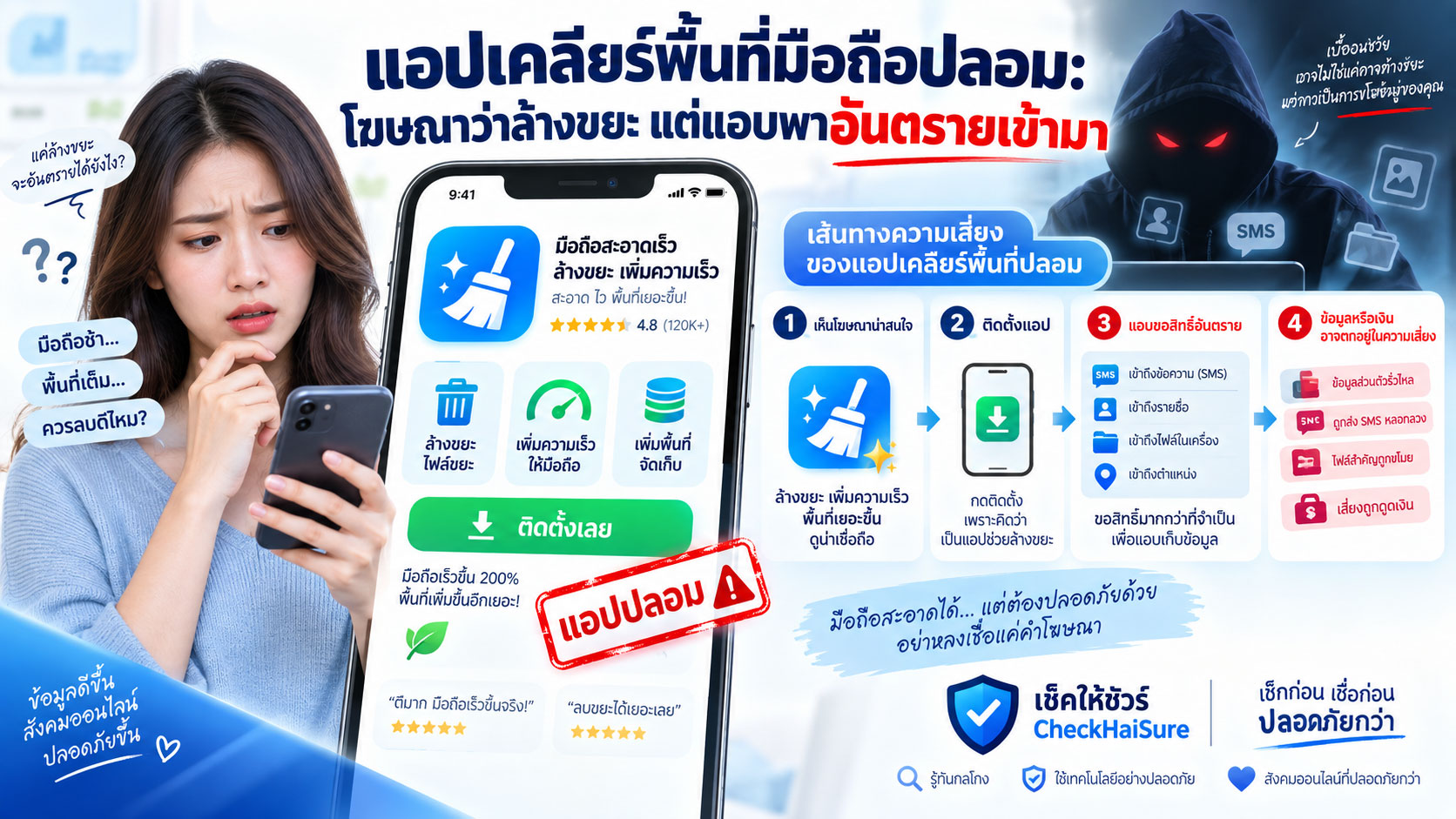
“มือถือของคุณมีไฟล์ขยะ 8.7 GB”
“ตรวจพบไวรัส 12 รายการ”
“หน่วยความจำใกล้เต็ม เครื่องอาจหยุดทำงาน”
“กด Clean Now เพื่อเร่งความเร็วทันที”
“มือถือของคุณกำลังตกอยู่ในอันตราย”
ข้อความแบบนี้ทำให้หลายคนรีบกดได้ง่ายมาก
โดยเฉพาะวันที่มือถือเริ่มช้า
เปิดแอปนานกว่าเดิม
ถ่ายรูปแล้วขึ้นว่าพื้นที่ไม่พอ
LINE ส่งไฟล์ไม่ได้
กล้องบันทึกวิดีโอไม่สำเร็จ
หรือมีข้อความแจ้งเตือนเรื่องพื้นที่เก็บข้อมูลเต็มจริง ๆ อยู่ก่อนแล้ว
พอมีโฆษณาเด้งขึ้นมาบอกว่า
“เราช่วยได้”
มันจึงดูสมเหตุสมผล
เรากำลังมีปัญหาเรื่องพื้นที่
ตรงหน้ามีปุ่มให้แก้
กดครั้งเดียวก็เหมือนจะจบ
แต่สิ่งที่ควรระวังคือ บางโฆษณาไม่ได้สนใจจะช่วยให้มือถือสะอาดขึ้นเลย
สิ่งที่มันต้องการอาจเป็นให้เราติดตั้งแอปอีกตัว
ให้สิทธิ์มากกว่าที่จำเป็น
เปิดหน้าเว็บต่อ
สมัครบริการที่ไม่ต้องการ
หรือพาเราไปถึงลิงก์และแอปที่มีความเสี่ยงมากขึ้น
จำประโยคนี้ไว้ก่อน
เครื่องเต็มเป็นปัญหาที่แก้ได้ แต่ไม่ควรแก้ด้วยแอปที่เราไม่รู้ว่าใครเป็นคนส่งเข้ามาในมือถือ
ทำไมโฆษณา “มือถือเต็ม” ถึงทำให้คนเชื่อง่าย
เพราะมันมักพูดตรงกับสิ่งที่เรากำลังรู้สึก
ถ้ามือถือเร็วดี
มีพื้นที่เหลือเยอะ
โฆษณาว่า “เครื่องคุณช้า” อาจไม่น่าเชื่อ
แต่ถ้ามือถือของเราช้าจริง
พื้นที่เหลือ 1 GB จริง
เปิดกล้องแล้วเตือนจริง
โฆษณานั้นจะดูเหมือนรู้ปัญหาของเรา
เราจึงอาจคิดว่า
“มันตรวจเจอจริงหรือเปล่า”
“โทรศัพท์คงมีขยะเยอะจริง”
“ลองกดดูก็ไม่น่าเสียหาย”
แต่ต้องเข้าใจว่า โฆษณาหลายแบบสามารถใช้ข้อความกว้าง ๆ ที่เข้ากับมือถือจำนวนมากได้
เช่น
เครื่องช้า
แบตหมดไว
พื้นที่เต็ม
มีไฟล์ขยะ
ต้องอัปเดต
มีความเสี่ยงด้านความปลอดภัย
คำเหล่านี้ใช้ได้กับผู้ใช้แทบทุกคนในบางช่วงเวลา
จึงไม่ควรใช้ข้อความในโฆษณาเป็นหลักฐานว่าแอปนั้น “ตรวจมือถือเราแล้วจริง ๆ”
โฆษณาอาจทำให้ดูเหมือนเป็นข้อความจากระบบ
จุดที่ทำให้หลายคนสับสนคือ โฆษณาบางชิ้นออกแบบให้ดูเหมือนหน้าจอของมือถือเอง
มีรูปแบตเตอรี่
รูปโล่ความปลอดภัย
แถบเปอร์เซ็นต์
คำว่า Warning
คำว่า Storage
หรือปุ่มสีเด่นเขียนว่า
Clean
Scan
Fix Now
Optimize
เราอาจไม่ได้คิดว่าเป็นโฆษณา
แต่คิดว่าโทรศัพท์กำลังเตือน
ตรงนี้สำคัญมาก
เพราะ ข้อความที่อยู่บนหน้าเว็บไซต์หรือในโฆษณา ไม่ได้แปลว่าเป็นข้อความจากระบบของโทรศัพท์
ก่อนกดอะไร ให้ดูว่า
ข้อความนั้นมาจาก Settings ของเครื่องจริงหรือไม่
หรือเป็นเพียงกล่องข้อความที่อยู่บนหน้าเว็บหรือโฆษณาที่เราเพิ่งเปิด
“ตรวจพบไวรัส 12 ตัว” ทั้งที่ยังไม่ได้ตรวจเครื่อง เป็นประโยคที่ควรสงสัย
สมมติเราเปิดเว็บไซต์อ่านข่าวอยู่
ทันใดนั้นมีหน้าเด้งขึ้นมา
“พบไวรัส 12 รายการในโทรศัพท์ของคุณ”
ลองหยุดแล้วถามตัวเองว่า
เว็บไซต์นี้ได้รับสิทธิ์อะไรในการตรวจมือถือเรา?
มันได้เข้าถึงไฟล์หรือยัง?
มันตรวจระบบเมื่อไร?
ทำไมถึงรู้จำนวนไวรัสได้ทันที?
บางครั้งข้อความเหล่านี้ไม่ได้มาจากการตรวจเครื่องจริง
แต่ถูกสร้างมาเพื่อทำให้เรากลัว
ยิ่งตัวเลขดูชัด เช่น
“พบ 14 ปัญหา”
“ความปลอดภัยเหลือ 18%”
“มีไฟล์ขยะ 7,432 รายการ”
ยิ่งทำให้ดูเหมือนผ่านการวิเคราะห์มาแล้ว
แต่ตัวเลขที่ละเอียด ไม่ได้แปลว่าข้อมูลนั้นจริงเสมอไป
ปัญหาเริ่มเมื่อจาก “ล้างขยะ” กลายเป็น “ติดตั้งแอปนี้ก่อน”
หลังจากกดโฆษณา เราอาจถูกพาไปยังหน้า Download
แล้วบอกว่า
“ติดตั้งเพื่อทำความสะอาดเครื่อง”
“ดาวน์โหลดตัวเร่งความเร็ว”
“ติดตั้ง Cleaner เพื่อกำจัดไวรัส”
“ต้องใช้แอปนี้เพื่อเพิ่มพื้นที่”
ตรงนี้ให้หยุดก่อน
เพราะจากเดิมเรามีปัญหาแค่พื้นที่เต็ม
ตอนนี้กำลังจะเพิ่มซอฟต์แวร์อีกตัวเข้าไปในเครื่อง
คำถามที่ควรถามคือ
ทำไมการแก้พื้นที่เต็ม ต้องเริ่มด้วยการเพิ่มแอปที่เราไม่รู้จักเข้าไปอีก
มือถือ Android และ iPhone มีเครื่องมือของระบบสำหรับดูพื้นที่อยู่แล้ว
เราสามารถตรวจได้ว่า
รูปภาพใช้พื้นที่เท่าไร
วิดีโอใช้เท่าไร
แอปไหนกินพื้นที่มาก
ไฟล์ดาวน์โหลดเยอะแค่ไหน
โดยไม่จำเป็นต้องเริ่มจากโฆษณาที่เด้งขึ้นมาเอง
แอป Cleaner ไม่ได้เป็นอันตรายทุกแอป
ควรแยกให้ชัดว่า แอปจัดการไฟล์หรือเครื่องมือทำความสะอาดไม่ได้เป็นของอันตรายทั้งหมด
บางแอปมีหน้าที่จริง เช่น
ช่วยค้นหาไฟล์ขนาดใหญ่
ช่วยจัดการไฟล์ซ้ำ
แสดงพื้นที่เก็บข้อมูล
ช่วยลบไฟล์ชั่วคราวบางประเภท
หรือจัดหมวดไฟล์ให้ค้นง่ายขึ้น
ดังนั้นปัญหาไม่ได้อยู่ที่คำว่า “Cleaner”
ปัญหาอยู่ที่
ใครเป็นผู้พัฒนา
เราเจอแอปจากไหน
แอปขอสิทธิ์อะไร
มันสัญญาเกินจริงหรือไม่
และหลังติดตั้งแล้วพยายามพาเราไปทำอะไรต่อ
อย่าตัดสินแอปจากคำว่า Cleaner อย่างเดียว
และก็อย่าตัดสินว่าปลอดภัยเพียงเพราะมีไม้กวาดหรือรูปโล่อยู่บนไอคอน
ถ้าแอปล้างขยะขอเข้าถึงสิ่งที่ไม่เกี่ยวกัน ให้หยุดถามก่อน
แอปประเภทนี้อาจจำเป็นต้องเข้าถึงไฟล์บางส่วน เพื่อช่วยจัดการพื้นที่
แต่ถ้าเริ่มขอสิทธิ์ที่ดูไม่เกี่ยวข้อง เช่น
รายชื่อผู้ติดต่อ
SMS
ไมโครโฟน
Accessibility
ควบคุมหน้าจอ
แสดงทับแอปอื่น
อ่านข้อความแจ้งเตือน
หรือขอสิทธิ์ระดับสูงหลายอย่างพร้อมกัน
ควรถามทันทีว่า
ทำไมแอปที่มีหน้าที่ลบไฟล์ขยะ ถึงต้องการสิทธิ์เหล่านี้
ทุกครั้งที่แอปขอ Permission เราไม่จำเป็นต้องกด Allow เพื่อให้ขั้นตอนเดินต่อ
เราสามารถปฏิเสธก่อน แล้วดูว่าแอปยังทำหน้าที่หลักได้หรือไม่
คำว่า
“Required”
บนหน้าจอของแอปเอง
ไม่ได้ทำให้สิทธิ์นั้นจำเป็นจริงเสมอไป
จาก Cleaner ตัวหนึ่ง อาจพาไปติดตั้งอีกหลายตัว
อีกพฤติกรรมที่น่ารำคาญและควรระวังคือ
ติดตั้ง Cleaner ตัวหนึ่งแล้ว
กลับมีข้อความต่อว่า
“ยังพบไวรัส”
“ต้องติดตั้ง Antivirus เพิ่ม”
“แบตเตอรี่มีปัญหา ดาวน์โหลด Battery Saver”
“Wi-Fi ไม่ปลอดภัย ติดตั้ง VPN”
“เครื่องยังช้า ดาวน์โหลด Booster”
จากปัญหาเดียว
เราเริ่มมีแอปเพิ่มทีละตัว
และแต่ละตัวอาจมีโฆษณา การแจ้งเตือน หรือการขอสิทธิ์ของตัวเอง
สุดท้ายมือถือที่ตั้งใจจะ “ทำความสะอาด”
กลับมีแอปที่เราไม่รู้จักเพิ่มเข้ามาหลายตัว
ถ้าแอปหนึ่งพยายามขายความกลัวเรื่องใหม่ให้เราตลอดเวลา
ควรหยุดและทบทวนว่า
เรากำลังแก้ปัญหาอยู่
หรือกำลังถูกพาเข้าไปในวงจรติดตั้งแอปเรื่อย ๆ
“เครื่องคุณช้า” ไม่ได้แปลว่าต้องมีไวรัส
มือถือช้าสามารถเกิดได้จากหลายสาเหตุ
พื้นที่เก็บข้อมูลเหลือน้อย
มีแอปทำงานเบื้องหลังเยอะ
เครื่องรุ่นเก่า
ระบบปฏิบัติการเก่า
แบตเตอรี่เสื่อม
มีรูปหรือวิดีโอจำนวนมาก
แอปบางตัวมีปัญหา
หรือเพียงเปิดเครื่องมานานโดยไม่เคยรีสตาร์ต
ดังนั้นถ้ามือถือช้า
อย่าให้โฆษณาสรุปแทนเราทันทีว่า
“คุณติดไวรัส”
ความช้าเป็นอาการ
ไม่ใช่คำวินิจฉัยว่าเครื่องติดมัลแวร์เสมอไป
“แบตหมดไว” ก็ไม่ใช่หลักฐานว่าต้องโหลด Cleaner
โฆษณาบางตัวจะโยงหลายปัญหาเข้าด้วยกัน
แบตหมดไว
เครื่องร้อน
พื้นที่เต็ม
มีขยะ
แล้วเสนอว่าแอปเดียวจะแก้ได้ทุกอย่าง
ตรงนี้ควรสงสัย
เพราะปัญหาแต่ละอย่างอาจมีสาเหตุต่างกัน
แบตหมดเร็วอาจเกิดจาก
หน้าจอ
สัญญาณมือถือ
แอปที่ทำงานเบื้องหลัง
GPS
วิดีโอ
เกม
อายุแบตเตอรี่
หรือระบบของเครื่อง
ไม่มีเหตุผลที่ทุกปัญหาจะต้องจบที่ปุ่ม
“Install Cleaner Now”
ระวังหน้าเว็บที่กด Back แล้วไม่ยอมออก
บางโฆษณาพยายามทำให้เรารู้สึกว่าไม่มีทางเลือก
กด Back แล้วมีอีก Pop-up
กดปิดแล้วเด้งใหม่
มีเสียงเตือน
หน้าจอสั่น
หรือมี Countdown
“แก้ภายใน 2:00 นาที”
“ข้อมูลของคุณกำลังเสี่ยง”
สิ่งสำคัญคืออย่าตื่นตระหนก
หน้าเว็บไม่ใช่เจ้าของมือถือเรา
เราไม่จำเป็นต้องทำตามปุ่มที่อยู่บนหน้าเว็บ
สามารถปิดแท็บ
ปิด Browser
หรือออกจากหน้าเว็บได้
ถ้าปิดไม่ได้ตามปกติ ให้หยุดและขอความช่วยเหลือแทนการกดปุ่มที่หน้าเว็บเสนอไปเรื่อย ๆ
ตัวนับเวลาถอยหลังมักมีไว้เร่งเรา ไม่ได้พิสูจน์ว่าเครื่องจะพัง
“เหลือเวลา 58 วินาที”
“ไวรัสจะทำลายข้อมูลใน 2 นาที”
“กดตอนนี้ก่อนข้อมูลสูญหาย”
เวลาถอยหลังทำให้สมองเรารู้สึกว่าไม่มีเวลาตรวจสอบ
แต่ถามตัวเองว่า
ทำไมมัลแวร์ในโทรศัพท์ต้องรอตัวนับบนโฆษณาให้ครบก่อนถึงจะทำงาน?
ตัวจับเวลาอาจเป็นเพียงเครื่องมือทางจิตวิทยา
มีไว้ทำให้เรากดก่อนคิด
ถ้าหน้าเว็บกำลังนับถอยหลังใส่เรา
สิ่งที่ควรนับอาจไม่ใช่วินาที
แต่คือ
“หนึ่ง สอง สาม — แล้วปิดหน้านั้นออก”
ระวังแอปที่ทำให้การแจ้งเตือนกลายเป็นโฆษณาไม่หยุด
บางคนติดตั้งแอป Cleaner แล้วพบว่า หลังจากนั้นมือถือกลับมี Pop-up มากกว่าเดิม
มีแจ้งเตือนว่า
เครื่องเสี่ยง
RAM เต็ม
แบตเตอรี่เสีย
Wi-Fi ไม่ปลอดภัย
ต้อง Clean อีกครั้ง
หรือมีโฆษณาแอปอื่นตลอดวัน
สิ่งที่เกิดขึ้นอาจทำให้ผู้ใช้คิดว่า
“เครื่องมีปัญหาหนักกว่าเดิม”
แล้วกดกลับเข้าแอปซ้ำ
ทั้งที่ข้อความเตือนบางส่วนอาจมาจากแอปนั้นเอง
ถ้ามีแอปหนึ่งคอยบอกเราว่าเครื่องมีปัญหาทุกวัน และทุกปัญหาจบด้วยการซื้อ สมัคร หรือติดตั้งอะไรเพิ่ม
อย่าเพิ่งเชื่อว่าโทรศัพท์เป็นฝ่ายมีปัญหา
บางทีสิ่งที่ควรเอาออก อาจเป็นแอปที่กำลังเตือนเรานั่นเอง
อย่ากด Subscription เพราะคิดว่าเป็นปุ่ม Clean
อีกเรื่องที่คนอาจพลาดคือหน้าจอสมัครบริการ
บางแอปเปิดมาแล้วมีปุ่มใหญ่
Start
Continue
Clean Now
Try Free
ด้านล่างมีข้อความเล็ก ๆ เรื่อง Subscription
เมื่อรีบกด เราอาจเข้าใจว่ากำลังเริ่มสแกน
แต่จริง ๆ อาจกำลังสมัครทดลองใช้ หรือบริการแบบต่ออายุอัตโนมัติ
ก่อนยืนยันอะไร
อ่านให้ชัดว่า
มีค่าใช้จ่ายหรือไม่
ทดลองฟรีกี่วัน
หลังจากนั้นคิดเท่าไร
คิดรายสัปดาห์ รายเดือน หรือรายปี
และยกเลิกอย่างไร
คำว่า “Free” ใหญ่ ๆ ไม่สำคัญเท่าข้อความเล็ก ๆ ที่บอกว่าจะถูกคิดเงินเมื่อไร
อย่าเชื่อคะแนนดาวอย่างเดียว
รีวิวช่วยได้ แต่ไม่ควรดูเพียงตัวเลขรวม
ก่อนติดตั้ง ลองเปิดอ่านความคิดเห็นจริงหลาย ๆ รายการ
โดยเฉพาะรีวิวล่าสุด
ดูว่ามีคนพูดถึง
โฆษณามากเกินไป
คิดเงินโดยไม่เข้าใจ
แจ้งเตือนรบกวน
ขอสิทธิ์มาก
ถอนการติดตั้งยาก
หรือพาไปโหลดแอปอื่นหรือไม่
ดูชื่อผู้พัฒนา
เว็บไซต์
อีเมลติดต่อ
แอปอื่นของผู้พัฒนา
และประวัติการอัปเดตประกอบกัน
อย่าตัดสินจากดาว 4.8 เพียงตัวเลขเดียว
ถ้าโฆษณาพาออกจาก Store ไปโหลด APK ให้หยุดทันที
ถ้ากดโฆษณา Cleaner แล้วปลายทางไม่ได้เป็น Store ทางการ
แต่กลายเป็น
เว็บไซต์ดาวน์โหลดไฟล์
ไฟล์ APK
ลิงก์ในแชท
หรือมีคำสั่งให้เปิด Install Unknown Apps
ความเสี่ยงสูงขึ้นทันที
ยิ่งถ้าแอปอ้างว่า
“เวอร์ชัน Store ทำความสะอาดได้ไม่เต็มที่”
“ต้องโหลด Pro จากเว็บไซต์”
“ต้องใช้ APK เพื่อกำจัดไวรัส”
ให้หยุดตรวจสอบก่อน
ปัญหาเรื่องพื้นที่เต็มไม่ควรบังคับให้เราลดการตั้งค่าความปลอดภัยของเครื่อง
ถ้ามีคนโทรมาพร้อมโฆษณา Cleaner ยิ่งต้องระวัง
บางสถานการณ์อาจเริ่มจากโฆษณา
จากนั้นมีช่องให้กรอกเบอร์
มีแชทช่วยเหลือ
หรือมีคนติดต่อกลับมา
แล้วบอกว่า
“ตรวจพบว่าเครื่องคุณมีปัญหา”
“เดี๋ยวเจ้าหน้าที่ช่วย”
“ติดตั้งแอปนี้เพิ่ม”
“เปิด Accessibility”
“แชร์หน้าจอมา”
ถ้าเรื่องจากแอปล้างขยะเริ่มพาไปถึง Remote Access หรือ Mobile Banking
ให้หยุดทันที
Cleaner ไม่มีเหตุผลที่จะต้องให้คนแปลกหน้าเข้ามาดูแอปธนาคารของเรา
วิธีเช็กพื้นที่มือถือแบบไม่ต้องเริ่มจากโฆษณา
ถ้ามือถือเต็มจริง ให้เริ่มจากเครื่องมือของระบบก่อน
เข้า Settings
ดู Storage
ดูว่าอะไรใช้พื้นที่มากที่สุด
อาจเป็น
รูปภาพ
วิดีโอ
แอป
ไฟล์ดาวน์โหลด
ไฟล์จากแชท
หรือข้อมูลบางประเภทที่สะสมมานาน
จากนั้นค่อยตัดสินใจว่าอะไรลบได้
รูปสำคัญอาจสำรองก่อน
วิดีโออาจย้ายไปพื้นที่อื่น
แอปที่ไม่ใช้ค่อยถอน
ไฟล์ดาวน์โหลดเก่าค่อยลบ
วิธีนี้อาจไม่ดูหวือหวาเท่าปุ่ม
“Clean 10 GB in 10 Seconds”
แต่มันช่วยให้เรารู้ว่าเรากำลังลบอะไรจริง ๆ
ถ้าต้องการใช้ Cleaner จริง ๆ ให้เราเป็นคนหาเอง
ถ้าเราต้องการเครื่องมือช่วยจัดการไฟล์จริง
ให้เริ่มต้นจากความต้องการของเราเอง
ไม่ใช่จากโฆษณาที่บอกว่าเครื่องกำลังจะพัง
ค้นแอปจาก Store ทางการเอง
ดูผู้พัฒนา
อ่านรายละเอียด
ดู Permission
อ่านรีวิว
และพิจารณาว่าฟังก์ชันนั้นจำเป็นจริงหรือไม่
ความแตกต่างเล็ก ๆ คือ
เราเป็นคนหาแอป
แทนที่จะเป็น
โฆษณาเป็นคนเลือกแอปให้เรา
สัญญาณเตือนของแอป Cleaner ที่ควรสงสัย
ระวังมากขึ้นถ้าเจอหลายข้อพร้อมกัน
โฆษณาอ้างว่าตรวจพบไวรัสทันที
ใช้ตัวเลขปัญหาที่ดูแม่นยำ ทั้งที่ยังไม่ได้ตรวจเครื่อง
มี Countdown เร่งให้กด
บอกว่าเครื่องจะเสียถ้าไม่ Clean ตอนนี้
พาไปดาวน์โหลดนอก Store
ให้ติดตั้ง APK
ขอเปิด Install Unknown Apps
ขอ Accessibility
ขอสิทธิ์ควบคุมหน้าจอ
ขออ่าน SMS
ขอรายชื่อผู้ติดต่อโดยไม่มีเหตุผล
พยายามติดตั้งแอปอื่นต่อ
แจ้งเตือนโฆษณาซ้ำ ๆ ตลอดวัน
ทำปุ่ม Subscription ให้ดูเหมือนปุ่ม Clean
ขอข้อมูลบัตรหรือการชำระเงินโดยไม่ชัดเจน
หรือหลังติดตั้งแล้วพาไปถึง Mobile Banking
ยิ่งเจอหลายข้อ
ยิ่งควรหยุดก่อน
ถ้าเผลอติดตั้งไปแล้ว ควรทำอย่างไร
ถ้าเริ่มสงสัยว่าแอป Cleaner ที่ติดตั้งไม่น่าไว้ใจ
อย่าเพิ่งให้ Permission เพิ่ม
ตรวจดูว่าแอปได้รับสิทธิ์อะไรแล้ว
ปิดสิทธิ์ที่ไม่จำเป็น
ตรวจ Accessibility
ตรวจการแสดงทับแอปอื่น
ตรวจการเข้าถึง SMS และการแจ้งเตือน
ตรวจว่ามีแอปอื่นถูกติดตั้งตามมาหรือไม่
ถอนการติดตั้งแอปที่สงสัยหากสามารถทำได้อย่างปลอดภัย
และสังเกตว่า Pop-up หรือการแจ้งเตือนผิดปกติยังเกิดอยู่หรือไม่
ถ้าไม่มั่นใจ ให้ขอความช่วยเหลือจากคนที่ไว้ใจได้
ถ้าเคยกรอกบัตร รหัสผ่าน หรือเปิด Mobile Banking หลังติดตั้ง
สถานการณ์นี้ต้องจริงจังขึ้น
ถ้าเคยกรอก
ข้อมูลบัตร
รหัสผ่าน
ข้อมูลบัญชี
OTP
หรือเปิด Mobile Banking ในช่วงที่มีแอปต้องสงสัยหรือ Remote Access ทำงาน
ควรใช้เครื่องที่เชื่อถือได้ติดต่อธนาคารหรือบริการที่เกี่ยวข้องผ่านช่องทางทางการโดยเร็ว
อย่ารอให้เห็นธุรกรรมผิดปกติก่อน
และเปลี่ยนรหัสผ่านที่เกี่ยวข้องจากอุปกรณ์ที่เชื่อถือได้ตามความเหมาะสม
อย่าโทษคนในบ้านเพราะกดคำว่า “Clean”
สิ่งที่ทำให้กลโกงนี้ได้ผลคือมันเริ่มจากเรื่องธรรมดามาก
พื้นที่เต็ม
มือถือช้า
แบตหมดเร็ว
หลายคนจึงไม่ได้รู้สึกว่ากำลังทำอะไรเสี่ยง
ถ้าคนในบ้านเผลอติดตั้งไปแล้ว
แทนที่จะถามว่า
“ทำไมถึงไปกดโฆษณา”
ลองถามว่า
ติดตั้งแอปชื่ออะไร
โหลดจากไหน
กด Allow อะไรไปบ้าง
มีใส่ข้อมูลอะไรหรือไม่
มีสมัครบริการหรือไม่
มีแอปอื่นตามมาไหม
มีเปิดแอปธนาคารหรือไม่
คำตอบเหล่านี้ช่วยแก้ปัญหาได้มากกว่า
กฎง่าย ๆ สำหรับผู้สูงอายุ: เครื่องเต็ม ไม่ต้องรีบโหลดแอปจากโฆษณา
บางคนไม่จำเป็นต้องรู้ว่า Malware, Adware หรือ Permission ต่างกันอย่างไร
ให้จำง่าย ๆ ว่า
ถ้ามือถือบอกว่าพื้นที่เต็ม ให้ถามคนในบ้านหรือเข้า Settings ก่อน อย่ากดแอป Cleaner จากโฆษณาทันที
และ
ถ้าหน้าเว็บบอกว่ามีไวรัส อย่าเชื่อเพียงเพราะมีตัวเลขสีแดง
กฎสองข้อนี้ช่วยตัดการหลอกตั้งแต่ต้นทางได้มาก
ประโยคที่ควรจำ: โทรศัพท์เต็ม ไม่ได้แปลว่าต้องเติมแอปอีกตัวเข้าไป
ถ้าต้องจำเพียงประโยคเดียวจากบทความนี้ ขอให้จำว่า
โทรศัพท์เต็ม ไม่ได้แปลว่าเราต้องเติมแอปอีกตัวเข้าไปทันที
เริ่มจากดู Storage ก่อน
ดูว่าอะไรใช้พื้นที่
ลบสิ่งที่รู้จัก
สำรองสิ่งที่สำคัญ
ถอนแอปที่ไม่ใช้
และถ้าจะใช้เครื่องมือเสริม
ให้เราเป็นคนเลือกเองจากช่องทางที่ตรวจสอบได้
อย่าให้ Pop-up ที่เพิ่งเจอเมื่อไม่กี่วินาที เป็นคนตัดสินว่าแอปอะไรควรเข้ามาอยู่ในมือถือของเรา
สรุป: ปุ่ม “Clean Now” อาจไม่ได้กำลังช่วยทำความสะอาดอย่างที่เราคิด
แอปเคลียร์พื้นที่มือถือมีทั้งเครื่องมือที่มีประโยชน์จริง และแอปหรือโฆษณาที่ควรระวัง
จุดสำคัญคืออย่าปล่อยให้ความหงุดหงิดจากมือถือช้า หรือความกลัวจากคำว่า “ไวรัส” ทำให้เรากดทุกอย่างต่อเนื่อง
โฆษณาบอกว่าเครื่องเต็ม
กด Clean
พาไป Download
ติดตั้งแอป
กด Allow
ติดตั้งอีกตัว
เปิด Permission เพิ่ม
จากปัญหาเล็ก ๆ เรื่องพื้นที่
อาจกลายเป็นการเปิดข้อมูลและสิทธิ์ในมือถือให้แอปที่เราไม่เคยตั้งใจจะใช้ตั้งแต่แรก
ถ้ามือถือช้า
หยุดก่อน
ถ้าพื้นที่เต็ม
ตรวจจาก Settings ก่อน
ถ้ามีหน้าเว็บบอกว่าติดไวรัส
อย่ารีบเชื่อ
ถ้าต้องโหลดแอป
ให้เราเป็นคนหาเอง
และถ้ามีแอป Cleaner ตัวไหนพยายามพาเราเข้า SMS, Accessibility, Remote Access หรือ Mobile Banking
ตรงนั้นไม่ใช่การ “ล้างขยะ” ธรรมดาอีกต่อไปแล้ว
มือถือที่มีพื้นที่เหลือน้อย ยังแก้ได้
แต่การให้ข้อมูลหรือสิทธิ์สำคัญกับแอปที่เราไม่รู้จัก อาจสร้างปัญหาที่ใหญ่กว่าไฟล์ขยะหลายเท่า
Fake Phone Cleaner Apps: When a “Clean Up” Ad Brings More Risk Into Your Device
“Your phone has 8.7 GB of junk files.”
“12 viruses detected.”
“Storage is almost full. Your phone may stop working.”
“Tap Clean Now to speed up your phone immediately.”
“Your device is at risk.”
Messages like these can make people tap very quickly.
Especially on a day when the phone really does feel slow.
Apps take longer to open.
The camera says there is not enough storage.
LINE cannot send a file.
A video will not save.
Or the phone has already shown a real warning that storage is running low.
Then an ad appears saying:
“We can fix it.”
It feels reasonable.
You have a storage problem.
There is a button right in front of you.
Tap once, and it looks like the problem should be solved.
But some ads are not really interested in cleaning your phone at all.
Their real goal may be to get you to install another app.
Grant more permissions than necessary.
Open another website.
Subscribe to a service you did not intend to buy.
Or lead you toward links and apps that create much bigger risks.
Remember this first:
A full phone is a problem that can be fixed, but it should not be fixed with an app when you do not know who put that app in front of you.
Why “Your Phone Is Full” Ads Are So Convincing
Because they often match something you are already experiencing.
If your phone is running perfectly,
with plenty of free storage,
an ad saying “Your phone is slow” may not feel believable.
But if your phone really is slow,
really has only 1 GB left,
or the camera really has warned you about storage,
the advertisement suddenly feels like it knows your problem.
You may start thinking:
“Did it actually detect something?”
“Maybe my phone really does have a lot of junk.”
“It probably cannot hurt to try.”
But many ads use broad messages that apply to a huge number of phone users.
For example:
Your device is slow.
Your battery drains quickly.
Your storage is almost full.
You have junk files.
You need an update.
Your device has a security risk.
Most phone users will experience at least one of these things at some point.
So the message in the ad should not be treated as proof that it has genuinely scanned your phone.
An Advertisement Can Be Designed to Look Like a System Warning
One reason people get confused is that some ads are intentionally designed to look like messages from the phone itself.
They may show:
A battery icon
A security shield
Percentage bars
The word “Warning”
The word “Storage”
Or a large button saying:
Clean
Scan
Fix Now
Optimize
You may not realize you are looking at an advertisement.
You may think the operating system itself is warning you.
That distinction matters.
A message displayed inside a webpage or advertisement is not automatically a message from your phone’s operating system.
Before tapping anything, look at where the warning is actually coming from.
Is it inside the phone’s Settings?
Or is it simply a box displayed on a website or ad you just opened?
“12 Viruses Detected” Before Anything Was Scanned Should Make You Suspicious
Imagine you are reading a website.
Suddenly a page appears saying:
“12 viruses found on your phone.”
Pause and ask:
What permission does this website have to scan my phone?
Has it been given access to my files?
When did it run the scan?
How does it already know the exact number of viruses?
Sometimes these messages are not based on a real device scan at all.
They are designed to create fear.
The more specific the number looks, the more convincing it can feel.
“14 problems detected.”
“Security level: 18%.”
“7,432 junk files found.”
Precise-looking numbers can create the impression that real analysis has taken place.
But a detailed number does not automatically make the claim true.
The Problem Changes When “Clean Up” Becomes “Install This App First”
After tapping the ad, you may be taken to a download page.
Then you see messages like:
“Install to clean your device.”
“Download the speed booster.”
“Install Cleaner to remove viruses.”
“Use this app to free storage.”
That is the moment to stop and think.
Originally, your problem was simply limited storage.
Now you are being asked to add another piece of software to the device.
Ask yourself:
Why does solving a full-storage problem begin by adding another unfamiliar app?
Both Android and iPhone already provide built-in tools for checking storage.
You can usually see:
How much space photos use
How much space videos use
Which apps use the most storage
How large your downloads folder is
without starting from an ad that appeared unexpectedly.
Not Every Cleaner App Is Dangerous
It is important to be fair about this.
File-management and cleanup apps are not automatically malicious.
Some have legitimate functions.
They may help you:
Find large files
Identify duplicate files
See storage usage more clearly
Remove certain temporary files
Or organize files into categories
So the problem is not the word “Cleaner.”
The better questions are:
Who developed the app?
Where did you find it?
What permissions does it ask for?
Does it make unrealistic promises?
And what does it try to make you do after installation?
Do not assume an app is dangerous simply because it is a cleaner.
But do not assume it is safe just because its icon has a broom or security shield either.
If a Cleaner App Requests Unrelated Permissions, Ask Why
A file-cleaning app may reasonably need access to certain files in order to manage storage.
But if it suddenly starts requesting permissions such as:
Contacts
SMS
Microphone
Accessibility
Screen control
Display over other apps
Notification access
Or several high-level permissions at once
stop and ask:
Why does an app that claims to remove junk files need access to these things?
You do not have to press Allow every time an app asks for permission.
You can refuse first and see whether the app can still perform its main function.
The word “Required” inside the app does not automatically mean that the permission is genuinely necessary.
One Cleaner App May Lead You to Install Several More
Another pattern to watch for is an app that keeps creating new problems after you install it.
You install one cleaner.
Then it says:
“Viruses still detected.”
“Install Antivirus.”
“Battery problem found. Download Battery Saver.”
“Wi-Fi is unsafe. Install VPN.”
“Phone still slow. Download Booster.”
One problem turns into several.
Then you have multiple unfamiliar apps installed.
Each app may have:
Its own ads
Its own notifications
Its own permission requests
And its own attempt to sell or install something else
The phone you originally wanted to “clean”
may end up with even more software than before.
If one app constantly creates new fears and offers another app as the solution,
stop and ask whether you are really fixing the phone
or being pulled into a cycle of endless installation.
A Slow Phone Does Not Automatically Mean You Have a Virus
Phones can become slow for many reasons.
Low free storage
Too many apps running in the background
Older hardware
An outdated operating system
A worn battery
Large amounts of photos or video
A badly behaving app
Or simply going a long time without restarting
So if your phone is slow,
do not let an advertisement immediately diagnose:
“You have a virus.”
Slowness is a symptom.
It is not proof of malware.
Fast Battery Drain Is Not Proof That You Need a Cleaner Either
Some ads combine many common problems into one story.
Battery drains quickly.
Phone feels hot.
Storage is full.
Junk files are present.
Then one app claims to fix everything.
That should make you cautious.
Different problems can have very different causes.
Fast battery drain may come from:
Screen brightness
Weak mobile signal
Background apps
GPS
Video streaming
Games
Battery age
Or the operating system itself
Not every issue should end with:
“Install Cleaner Now.”
Beware of Webpages That Refuse to Let You Leave
Some ads try to make you feel trapped.
You press Back and another pop-up appears.
You close one box and another opens.
There may be alarm sounds.
The screen may vibrate.
Or a countdown starts.
“Fix within 2:00 minutes.”
“Your data is at risk.”
Do not panic.
A webpage does not own your phone.
You do not have to follow the buttons it presents.
You can close the tab.
Close the browser.
Or leave the page.
If the page will not close normally, stop and ask someone you trust for help rather than continuing to tap whatever the page suggests.
Countdown Timers Are Often About Pressure, Not Proof
“58 seconds remaining.”
“Virus will damage your data in 2 minutes.”
“Act now before your files are lost.”
Countdowns create a feeling that there is no time to verify anything.
But ask yourself:
Why would malware on your phone wait for a timer on an advertisement before doing anything?
The timer may simply be psychological pressure.
Its purpose may be to make you tap before you think.
If a webpage is counting down at you,
the most useful countdown may be:
“One, two, three — close the page.”
Watch for Cleaner Apps That Turn Notifications Into Endless Advertising
Some people install a cleaner and then notice that their phone becomes even noisier.
New notifications say:
Your device is at risk.
RAM is full.
Battery health is poor.
Wi-Fi is unsafe.
You need to clean again.
Or there are ads for other apps throughout the day.
That can make the user think:
“My phone must be in even worse condition than I thought.”
Then they return to the cleaner app repeatedly.
But some of those warnings may be coming from the app itself.
If one app tells you every day that your phone has another serious problem,
and every problem ends with buying, subscribing, or installing something,
do not immediately assume the phone is the problem.
The thing that may need to be removed could be the app sending the warnings.
Do Not Mistake a Subscription Button for a “Clean” Button
Another place people can make a mistake is the subscription screen.
Some apps open with a large button saying:
Start
Continue
Clean Now
Try Free
Below it may be small text explaining a subscription.
When you are in a hurry, you may think you are starting a scan.
But you may actually be beginning a free trial or recurring subscription.
Before confirming anything, check:
Is there a charge?
How long is the free trial?
How much will it cost afterward?
Is it weekly, monthly, or yearly?
How do you cancel?
The large word “Free” matters less than the small text explaining when you will be charged.
Do Not Trust Star Ratings Alone
Reviews can help, but do not look only at the overall score.
Open several real reviews.
Especially recent ones.
Look for comments mentioning:
Too many ads
Unexpected charges
Constant warnings
Excessive permissions
Difficulty uninstalling
Or being pushed to download other apps
Also check:
Developer name
Website
Contact email
Other apps from the same developer
And update history
Do not decide based only on a 4.8-star score.
If the Ad Leads You Outside the Store to Download an APK, Stop
If you tap a cleaner advertisement and the destination is not an official app store,
but instead becomes:
A file-download website
An APK file
A chat link
Or instructions to enable Install Unknown Apps
the risk increases significantly.
Be especially cautious if it says:
“The store version cannot clean everything.”
“Download the Pro APK from our website.”
“This APK is required to remove the virus.”
A storage problem should not require you to weaken your phone’s security settings.
If a Cleaner Ad Leads to a Phone Call or Remote Support, Be Even More Careful
Some situations begin with an advertisement.
Then there is a form asking for your number.
A support chat appears.
Or someone calls you back.
They may say:
“We detected a serious problem on your phone.”
“Our officer can help.”
“Install this additional app.”
“Enable Accessibility.”
“Share your screen.”
If a simple cleaner issue starts leading toward Remote Access or Mobile Banking,
stop immediately.
A cleaner app has no reason to require a stranger to view your banking app.
How to Check Storage Without Starting from an Advertisement
If your phone really is full, begin with the operating system’s own tools.
Open Settings.
Check Storage.
See what is using the most space.
It may be:
Photos
Videos
Apps
Downloads
Files from messaging apps
Or data that has accumulated over time
Then decide what can safely be removed.
Important photos can be backed up first.
Videos can be moved elsewhere.
Unused apps can be uninstalled.
Old downloads can be deleted.
This may not look as dramatic as:
“Clean 10 GB in 10 Seconds.”
But it helps you understand what you are actually deleting.
If You Really Want a Cleaner App, Choose It Yourself
If you genuinely want a file-management or cleanup tool, begin with your own decision.
Not with an advertisement telling you your phone is about to fail.
Search the official app store yourself.
Check the developer.
Read the description.
Review permissions.
Read user feedback.
Then decide whether the function is actually useful for you.
The small but important difference is:
You chose the app.
Instead of:
An advertisement chose the app for you.
Warning Signs of a Suspicious Cleaner App
Be more cautious when several of these happen together:
An ad instantly claims to have detected viruses.
It shows precise-looking problem numbers without scanning the phone.
It uses a countdown timer to rush you.
It says the phone will fail unless you clean immediately.
It sends you outside the official app store.
It asks you to install an APK.
It asks you to enable Install Unknown Apps.
It asks for Accessibility.
It asks for screen-control permissions.
It asks to read SMS.
It asks for your contacts without a clear reason.
It keeps pushing additional apps.
It sends constant warning notifications throughout the day.
Its subscription button looks like a normal cleaning button.
It asks for payment or card details in an unclear way.
Or after installation, it leads you toward Mobile Banking.
The more signs you see,
the more reason you have to stop.
What Should You Do If You Already Installed It?
If you start to suspect that a cleaner app may not be trustworthy,
do not grant any additional permissions.
Check what permissions it already has.
Turn off access that does not make sense.
Review Accessibility.
Review display-over-other-app permissions.
Review SMS and notification access.
Check whether other apps were installed afterward.
Uninstall the suspicious app if you can do so safely.
Then watch whether the unusual pop-ups or notifications stop.
If you are not sure what to do, ask someone you trust for help.
If You Entered Card Details, Passwords, or Opened Mobile Banking
This situation deserves more attention.
If you entered:
Card information
Passwords
Bank account details
OTP codes
or opened Mobile Banking while a suspicious app or remote-access session was active,
use a trusted device to contact the bank or relevant service through an official channel as soon as possible.
Do not wait until you notice a suspicious transaction.
Change relevant passwords from a trusted device when appropriate.
Do Not Blame Someone in Your Family for Tapping “Clean”
This type of scam often works because it begins with something completely ordinary.
The phone is full.
The device is slow.
The battery drains quickly.
So the person who taps the ad may not feel like they are doing anything risky.
If a family member already installed the app, instead of asking:
“Why did you click that ad?”
ask:
What app did you install?
Where did you download it?
What permissions did you allow?
Did you enter any personal information?
Did you subscribe to anything?
Were other apps installed afterward?
Did you open your banking app?
Those answers are much more useful for solving the problem.
A Simple Rule for Older Family Members: A Full Phone Does Not Require an App from an Advertisement
People do not need to understand the difference between malware, adware, and permissions to stay safer.
A simple family rule can be:
If your phone says storage is full, ask someone you trust or check Settings first. Do not immediately install a cleaner from an advertisement.
And another:
If a webpage says you have viruses, do not believe it simply because the warning is red and shows a number.
Those two rules can stop many problems before they begin.
A Sentence to Remember: A Full Phone Does Not Mean You Need to Add Another App
If you remember only one sentence from this article, remember this:
A full phone does not mean you immediately need to add another app to it.
Start by checking Storage.
See what is using the space.
Remove files you recognize.
Back up important data.
Uninstall apps you no longer use.
And if you want an extra tool,
choose one yourself from a source you can verify.
Do not let a pop-up that appeared ten seconds ago decide what software should live on your phone.
Conclusion: The “Clean Now” Button May Not Be Cleaning What You Think
Phone-cleaning tools include both legitimate utilities and apps or advertisements that deserve caution.
The important thing is not to let frustration from a slow phone or fear from the word “virus” make you tap through every screen without thinking.
An ad says storage is full.
You tap Clean.
It sends you to Download.
You install an app.
You press Allow.
Another app is suggested.
More permissions appear.
A small storage problem can slowly turn into access being granted to software you never intended to trust.
If the phone is slow,
stop first.
If storage is full,
check Settings first.
If a webpage says you have a virus,
do not immediately believe it.
If you need an app,
find it yourself.
And if a cleaner app starts pushing you toward SMS access, Accessibility, Remote Access, or Mobile Banking,
it is no longer just about “cleaning junk files.”
A phone with low storage can be fixed.
But giving sensitive data or powerful permissions to an app you do not know can create a much bigger problem than a full storage bar.

Leave a Reply
You must be logged in to post a comment.